Case Management
On this page
| For step-by-step instructions, see Caseworker Guide: Case Management. |
|
Target-state design page: the screens below are the design engagement’s
target mockups, not the as-built system. Built today: the composed dashboard
( |
The Case Management module covers the full lifecycle of a child welfare case from initial opening through closure. It is the central hub through which caseworkers document all activity — contacts, court orders, case plans, and legal status — and from which all other modules are accessed in the context of a specific case.
Primary users: Caseworkers, Supervisors
Screen 1: Caseworker Dashboard
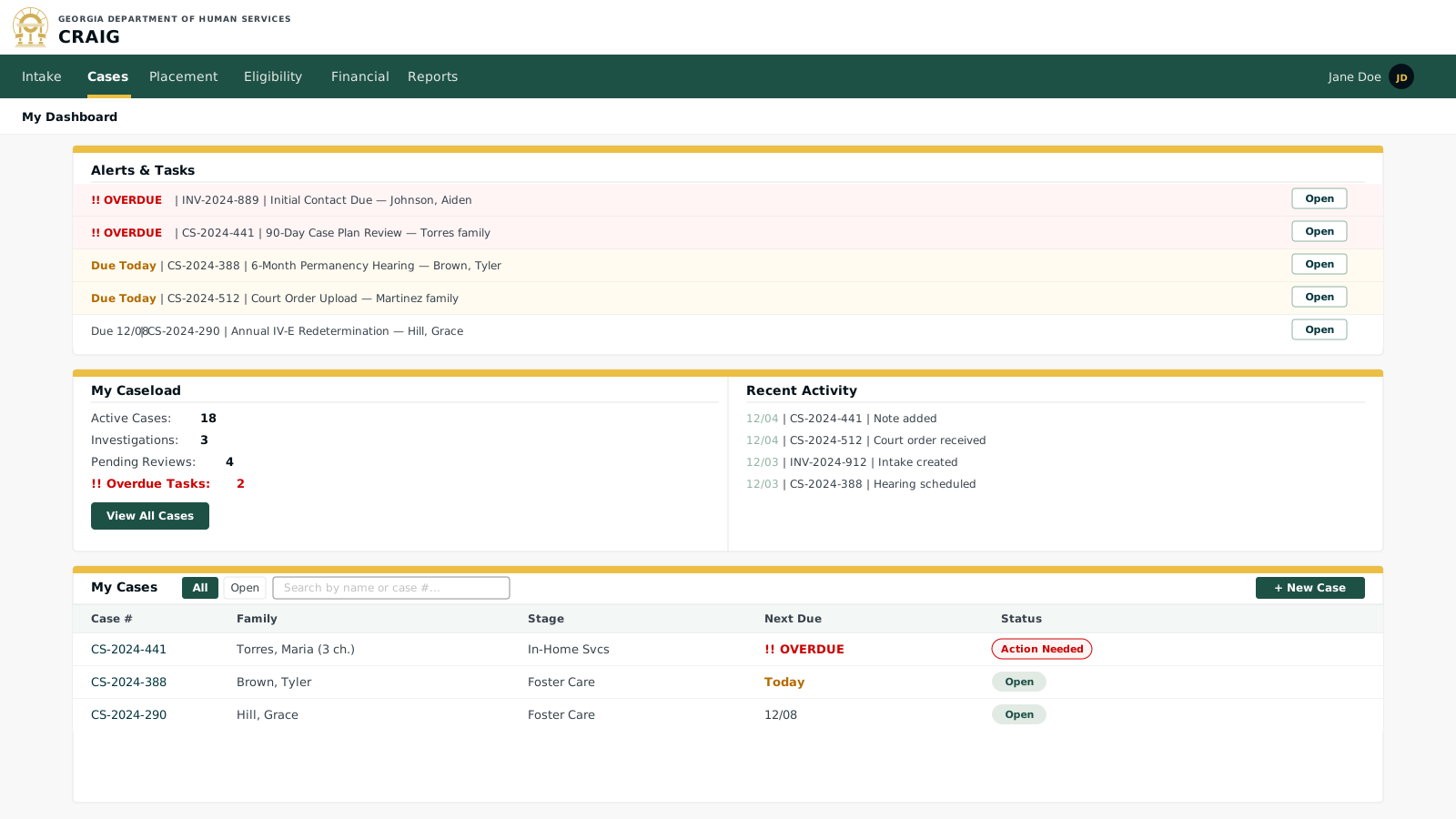
The dashboard is the caseworker’s landing page after login. It surfaces overdue tasks, upcoming events, and a caseload summary at a glance. Every alert links directly to the relevant case or task.
Key elements:
-
Alerts & Tasks panel: the Rules Engine monitors all cases for timeliness violations and populates this panel automatically; no manual task creation required for regulatory deadlines.
-
Caseload summary: active cases, investigations, and pending supervisor reviews at a glance; overdue count is clickable to filter the case list.
-
Case list filtering: workers can filter by stage, status, and date range; supervisors can filter across all workers in their unit.
-
Action Needed: a case reaches this status when the Rules Engine detects a required task that is approaching or past due.
Screen 2: Case Summary
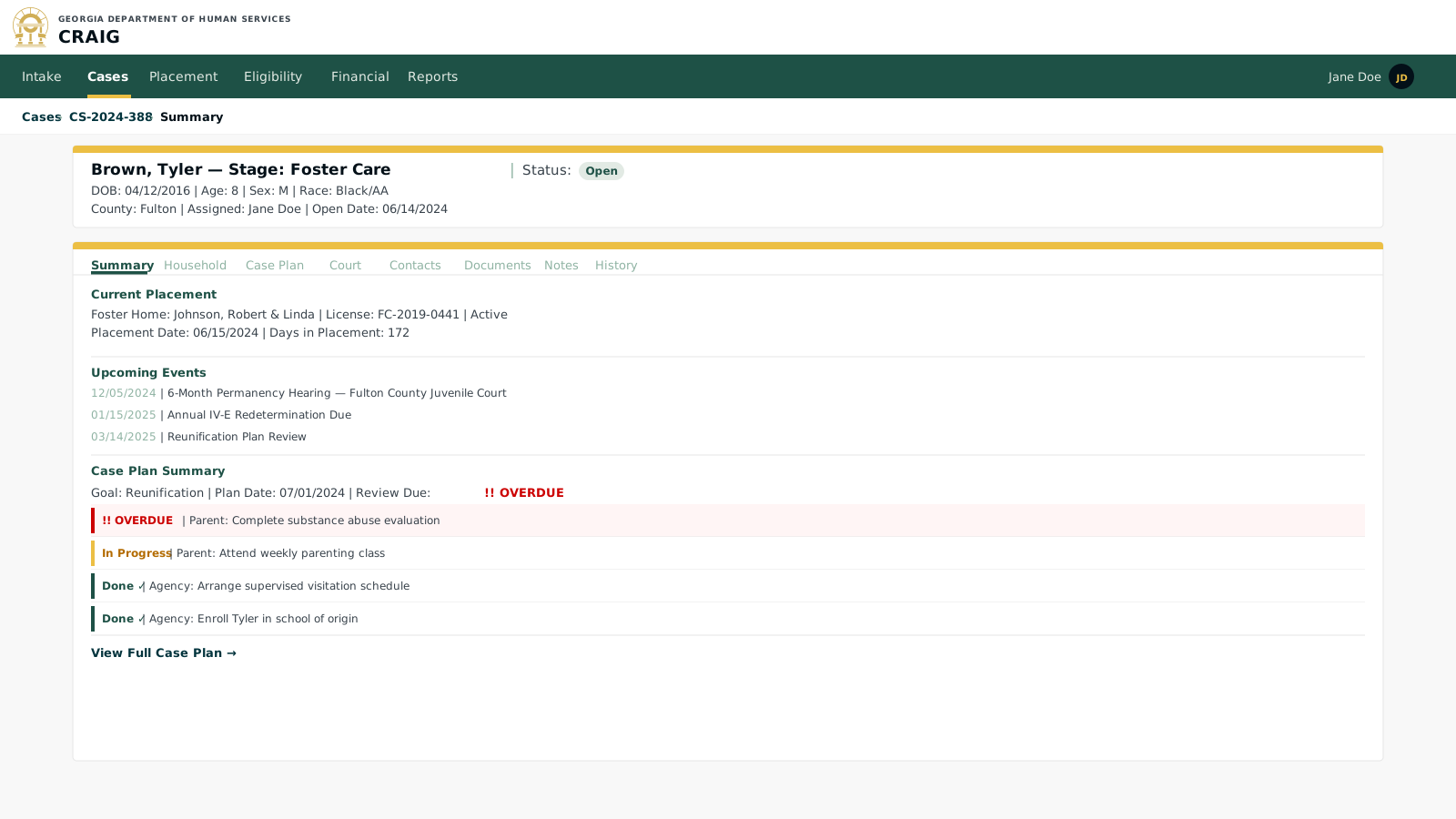
The case summary is the primary view for a single case. It provides a consolidated overview of the child, current placement, upcoming events, case plan status, and recent contacts — all from a single screen with tabs for deeper detail.
Key elements:
-
Tab navigation: Summary, Household, Case Plan, Court, Contacts, Documents, Notes, and History tabs provide structured access to all case information without leaving the case context.
-
Placement summary: current foster home, license status, and days in placement are always visible on the summary tab.
-
Case plan preview: the summary shows the most critical open and overdue tasks; clicking "View Full Case Plan" goes to the Case Plan tab.
Screen 3: Case Plan
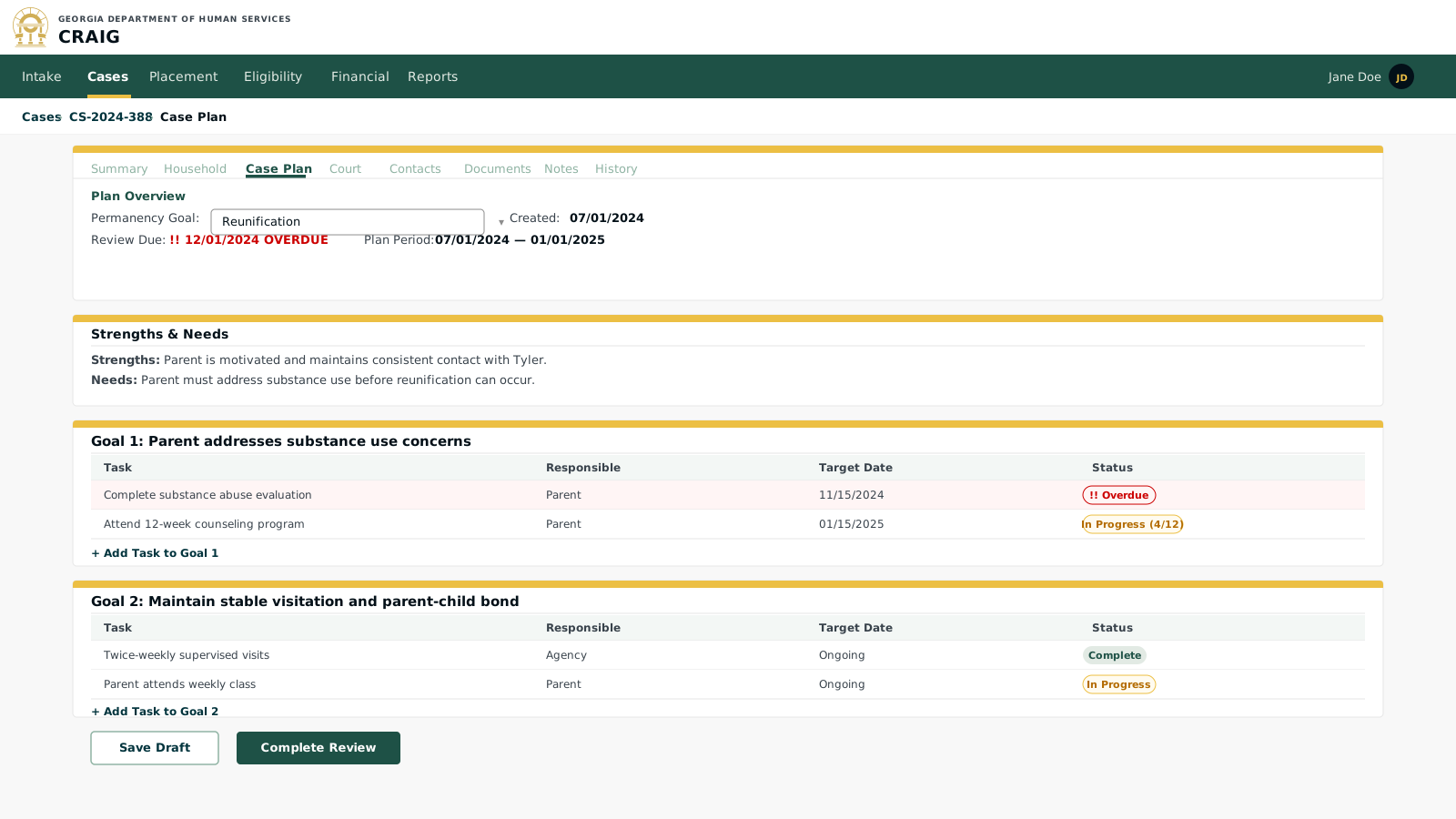
The case plan documents the permanency goal, household strengths and needs, and the specific goals and tasks assigned to the family and agency. The Rules Engine monitors task due dates and flags overdue items.
Key elements:
-
Permanency goal: drives which regulatory timeframes the Rules Engine monitors; changing the goal automatically recalculates hearing and review deadlines.
-
Responsible party: tasks are assigned to Parent, Agency, Provider, or Other; the family portal (Phase 11, see Constituent & Provider Portals) surfaces tasks where Responsible = Parent so families can see their own action items.
-
Progress tracking: subtask completion (e.g., "4 of 12 counseling sessions") can be updated by the worker or, when a provider portal (Phase 11) is connected, by the contracted provider directly.
-
Complete Review button: locks the current plan period and starts the next; requires supervisor countersignature before finalizing.